Setting up a VPN on a Keenetic router: step-by-step instructions
Setting up a VPN on a Keenetic router: step-by-step instructionsIf you are looking for how to set up a VPN on a Keenetic router step-by-step instructions, you have come to the right place. In this art...
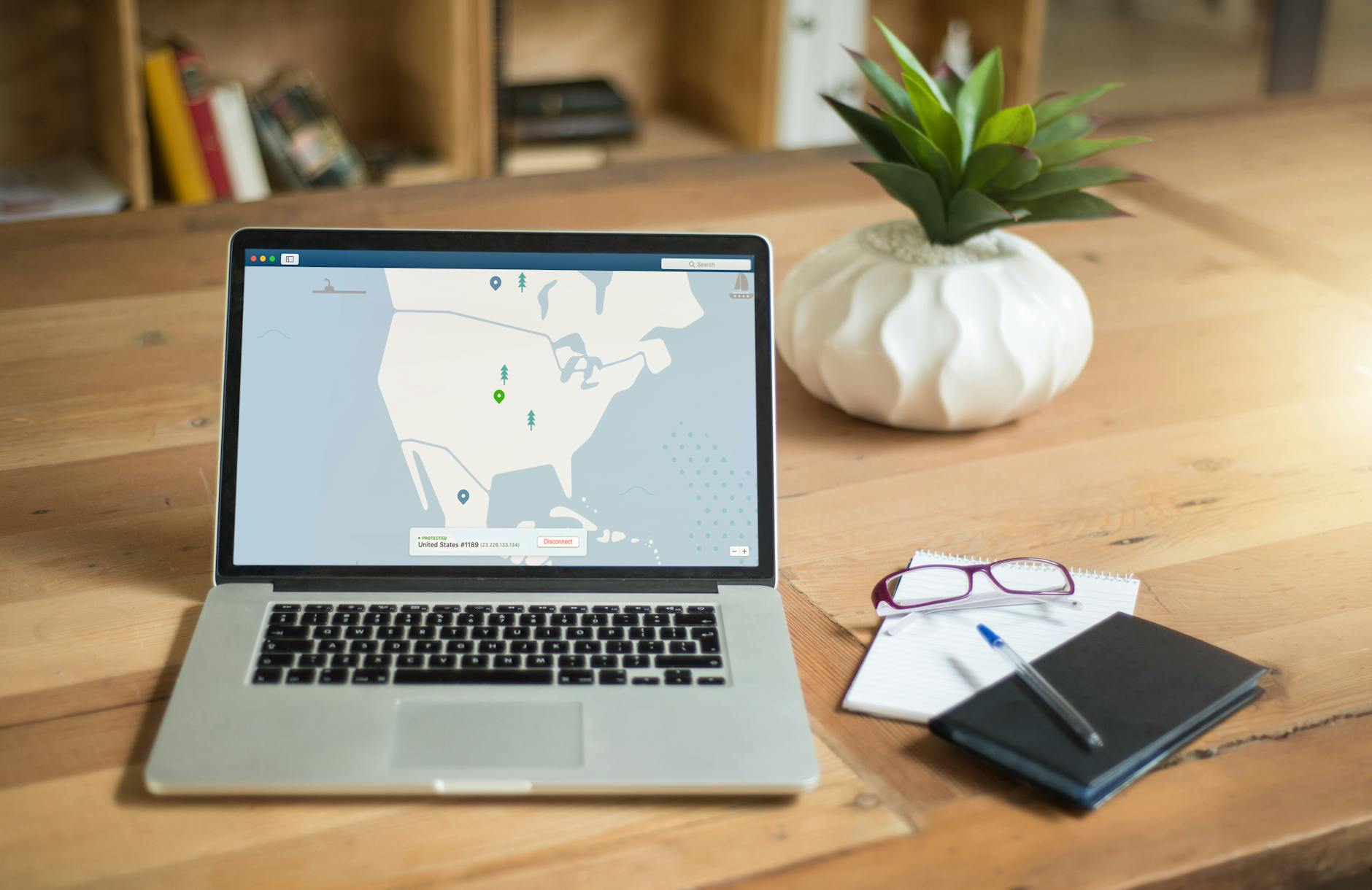
Setting up a VPN on a Keenetic router: step-by-step instructions
If you are looking for how to set up a VPN on a Keenetic router step-by-step instructions, you have come to the right place. In this article, I will explain how to properly set up a VPN to bypass restrictions and protect your privacy. We will go through all the stages, from checking router compatibility to testing the connection. Ready? Let's get started!
What is a VPN and why is it needed?
Definition of VPN
A VPN, or virtual private network, creates an encrypted connection between your device and the internet. This allows you to hide your real IP address and protect your data from prying eyes.
Advantages of using a VPN
Using a VPN has many advantages. First, it protects your privacy. Second, it provides access to blocked resources — such as YouTube and TikTok — in regions with strict restrictions.
Bypassing restrictions and protecting data
With a VPN, you can bypass restrictions imposed by internet service providers or Roskomnadzor. This is especially important if you want to use social networks or messengers like Instagram and Telegram.
Preparing to set up a VPN on a Keenetic router
Checking router compatibility
Before starting the setup, make sure your Keenetic router supports the necessary protocols, such as OpenVPN or WireGuard. You can do this by visiting the manufacturer's website or reviewing the documentation.
Choosing a VPN provider
The next step is to choose a reliable VPN provider. Pay attention to speed, security, and the ability to bypass restrictions. NvoVPN offers good solutions for such tasks.
Gathering necessary data for setup
Collect all the necessary data for setup: username, password, and server address of your VPN provider. This will simplify the setup process.
Step-by-step instructions for setting up a VPN
Accessing the router interface
Connect to your router via a browser by entering the IP address (usually 192.168.1.1 or 192.168.0.1). Enter the username and password to access the settings.
Setting up the VPN protocol
In the router interface, find the section related to VPN. Select the required protocol (for example, OpenVPN or IKEv2) and enter the data you collected earlier. Make sure you have correctly specified all settings.
Testing the connection
After completing the setup, check the connection. Try to access blocked websites or use services to check your IP address. If everything is set up correctly, you will see that your real IP address is hidden.
Problems and solutions when setting up a VPN
Unable to connect to the VPN
If you are having trouble connecting, check the accuracy of the entered data and protocol compatibility. Your internet provider may be blocking the VPN.
Performance issues
Using a VPN can slow down your internet connection. Try switching protocols (for example, from OpenVPN to WireGuard) to improve speed.
DPI settings and blocking
Some providers use DPI to block VPNs. If you encounter such problems, try using traffic obfuscation or choose a provider that offers special settings to bypass restrictions.
Which VPN protocol to choose for Keenetic?
Compare WireGuard, OpenVPN, and IKEv2 in terms of speed and security. WireGuard generally offers better performance, while OpenVPN is more widespread and time-tested.
Can I use a VPN on a Smart TV?
Yes, you can. Usually, you need to install a VPN app on the Smart TV or set up a VPN on the router to which the TV is connected.
How to check the connection speed with a VPN?
To test the speed, use tools like Speedtest or Fast.com. Pay attention to download speed and latency.
What restrictions may arise when using a VPN?
When using a VPN, restrictions may arise from Roskomnadzor or your internet provider. Sometimes this happens due to attempts to bypass restrictions.
How to set up a VPN to bypass restrictions in WhatsApp?
To bypass restrictions in WhatsApp, set up a VPN on the router and choose a server that is not blocked. This will allow you to use the messenger without limitations.
Related articles
You might also like
Как установить VPN на Android в 2026: пошаговая инструкция
Как установить VPN на Android в 2026: пошаговая инструкция Если YouTube грузится по три минуты, Ins...
Read moreVPN на айфон: настройка конфигурации в 2026
VPN на айфон: настройка конфигурации в 2026 Если вам прислали файл конфигурации или ссылку на VPN-с...
Read moreVPN для айфона с GitHub: бесплатные конфиги в 2026
VPN для айфона с GitHub: бесплатные конфиги в 2026 Если вы вбили в поиск «впн для айфон гитхаб», ск...
Read more